

No feed to break
Turn a messy statement into a clean list of transactions.
Trusted by households — and built for the professionals who clean up after them.
Download a PDF or CSV from your bank, then upload it here. LedgerLens pulls out every transaction on it — no feed to go quiet, no month to re-check.
Copilot Money starts by connecting your accounts through data providers — Plaid, Mastercard, MX and Akoya.
LedgerLens starts with the statement you already have — PDF or CSV — so your bank login stays at your bank. Copilot's help centre on how it gets your data
- No feed to go dark
- No credit card to get started
- Delete uploaded documents anytime
30-day money-back guarantee — first charge on a new paid plan, under 20 documents processed. Full policy
Your statement should not feel like a puzzle.
Store names do not always make sense. Personal and work costs can land in the same file. By the time you need the numbers, the rows all look alike.
LedgerLens gives you one place to check the list, fix unclear categories, and keep a clean copy.
Sales-tax measures are on the November 3 ballot in 10 LA and San Bernardino County cities. See the rate if they pass
Selling software in California? Sales tax on SaaS starts January 1, 2027. Take the SB 122 check
From statement to clean list in three steps
- 01
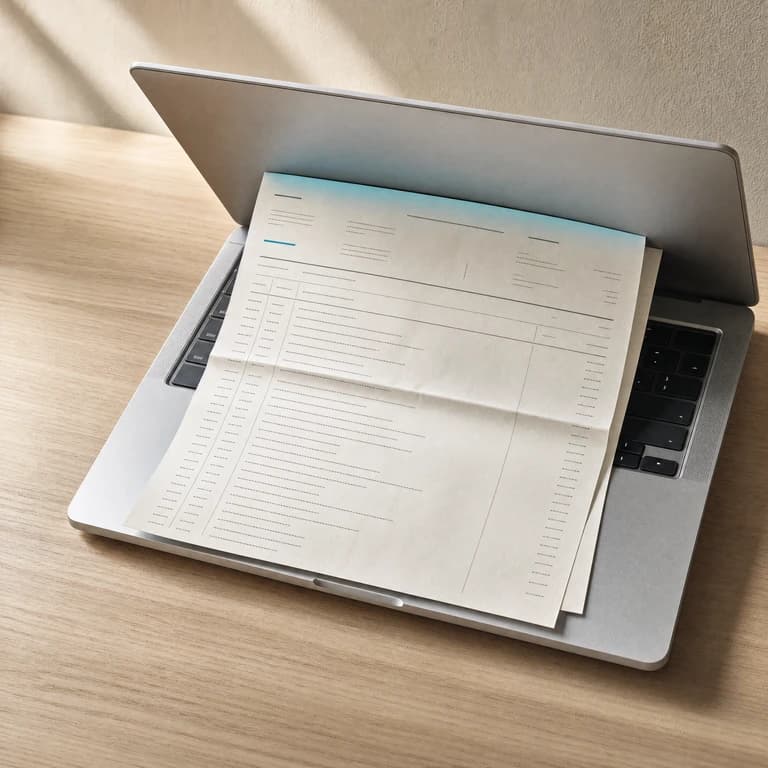
Download and upload
Get a PDF or CSV from your bank. Upload the file to LedgerLens. You never share your bank login.
- 02
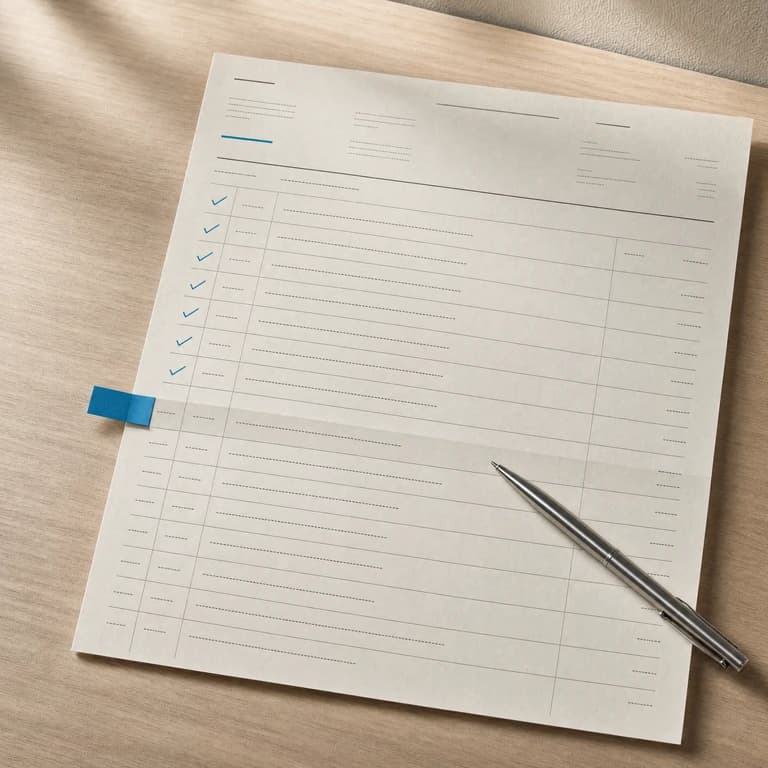
Check the rows
LedgerLens pulls out the transactions and suggests categories. Review the rows that look unclear, then change any category that needs fixing.
- 03
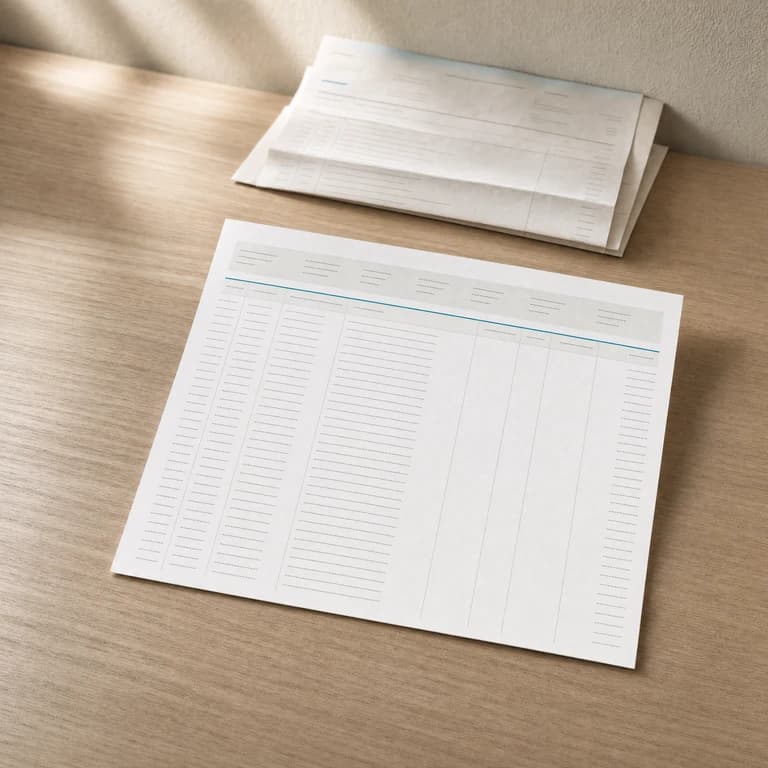
Keep what you need
Use the clean list in LedgerLens. On Plus or a higher plan, download the reviewed transactions as an Excel file. Delete an uploaded document whenever you want.
How this compares
Choose the workflow that fits.
Three apps people ask us about, and what each one needs from you before it can show you a transaction. Every sentence about another product links to that product's own documentation.
Copilot Money
Brings your data in by connecting your accounts through data providers, plus direct integrations with Apple, Capital One, Public and Coinbase.
LedgerLens
Reads the PDF or CSV your bank already gives you — no data provider in the middle of that path.
Rocket Money
States that “at least one linked checking account is required to utilize Rocket Money”.
LedgerLens
Works from a file that cannot stop importing: upload a statement, review the extracted rows, and delete the document when you are finished.
LedgerLens
Reads the PDF statement itself and turns it into a reviewable transaction list.
Three ways to use LedgerLens
Illustrative walkthroughs written by LedgerLens to show how the product works. These are not customer testimonials and do not describe any actual customer.
01

Maria, household organizer
Maria is 58. She has two monthly statements and a few store names she does not recognize. She uploads the files, checks the unclear rows, and changes any category that looks wrong.
02

Daniel, freelancer
“I want to check the unclear rows before I send the file to my accountant.”
Daniel uploads his statements, separates work costs from personal spending, and reviews the list. Excel download is available on Plus and higher plans.
03

Renee, home and side business
Renee has household costs and side-business costs in the same month. She uses filters to review each group, then keeps the clean list with her other records.
Also in ChatGPT
Ask ChatGPT about your own transactions.
Connect LedgerLens to ChatGPT and ask it what you spent, where, and when — free on every plan, including Starter. Read-only: it can never see raw PDFs, card numbers, or account numbers.
You are seeing about a tenth of it. Reconciliation, forecasting in four currencies, subscription detection, six report types, a net-worth ledger, and workspaces for creators and students all ship today. See all 110 features
Here is what it looks like inside.
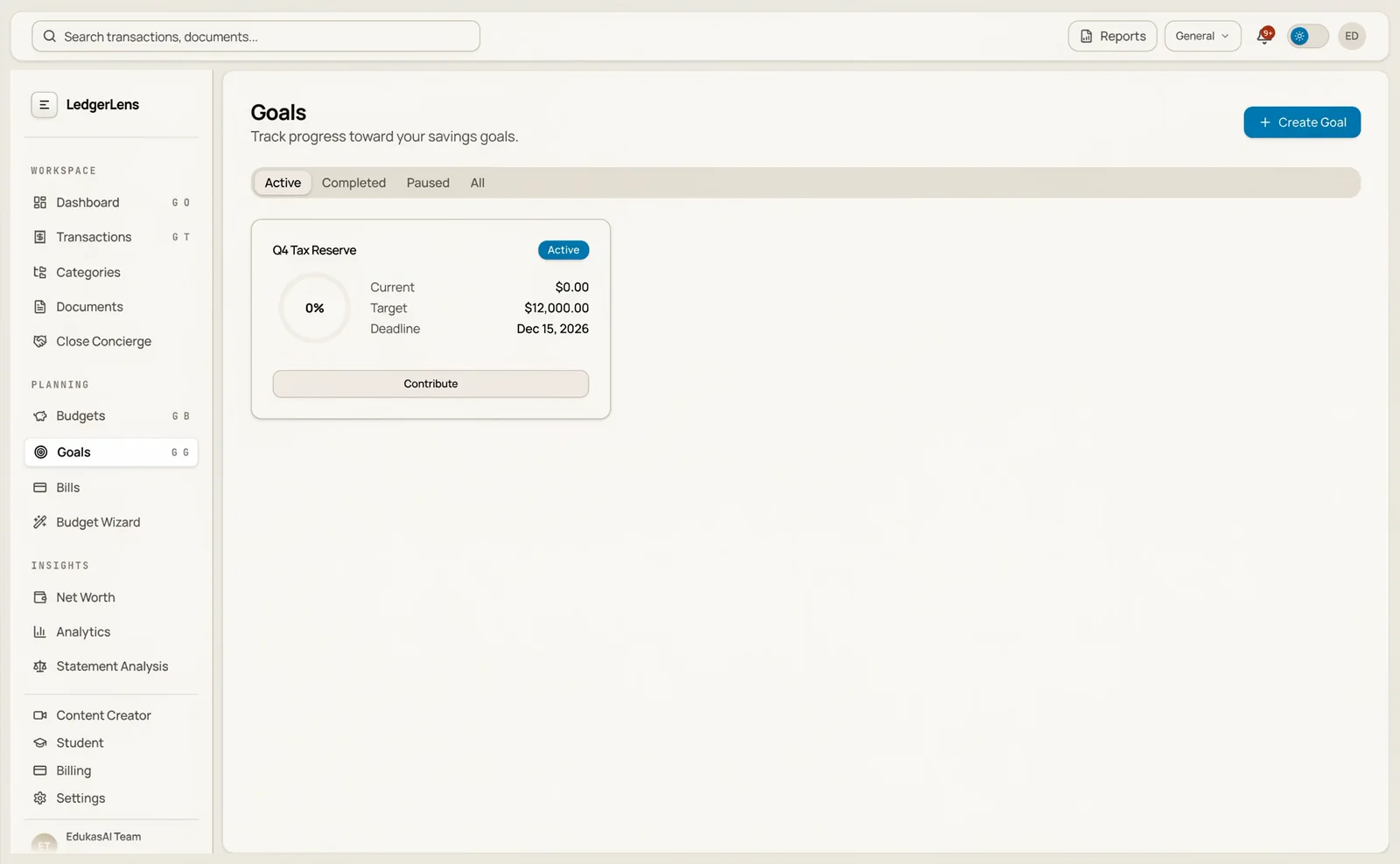
Built for review-heavy workflows
Different money situations. One cleaner review surface.
LedgerLens is not trying to be a universal money super-app. It is tuned for statement review, transaction verification, and cleanup across the workflows below.
Households
Review card charges, recurring bills, and monthly statements without app-switching.
Freelancers
Separate reimbursements, client expenses, and personal spend before export time.
Small Businesses
Keep uploaded statements searchable so month-end reviews take less manual cleanup.
Creators
Check payouts, subscriptions, and business purchases before they blur together.
Students
Stay on top of tuition, loan, and living-expense activity in one review surface.
Making one list from months of statements? every subscriptiona parent's transfers for Medi-Calan estate account
You choose what to upload. You can delete it later.
LedgerLens does not sell your financial data or use it for ads. LedgerLens and OpenAI do not use your financial data to train their models.
Some statements need outside help to read the transaction text. When that happens, OpenAI processes the text needed to return the result. It does not receive your uploaded file, but the text it reads can include your account number.
30-day money-back guarantee — first charge on a new paid plan, under 20 documents processed. Full policy
Before you connect anything
Bank feeds optimize for automatic syncing. LedgerLens optimizes for verification.
Both are real jobs. This is the one LedgerLens is built for, and what it costs you to try it is one statement.
| Compared on | Bank-feed budgeting apps | LedgerLens |
|---|---|---|
| How your data gets in | Bank-feed budgeting apps Connect an account through a data provider. Copilot uses Plaid, Mastercard, MX and Akoya. | LedgerLens Upload the PDF or CSV your bank already gives you. |
| What it takes to start | Bank-feed budgeting apps Rocket Money requires at least one linked checking account. | LedgerLens No credit card, and nothing has to be connected to start. Starter is free. |
| What the workflow is built around | Bank-feed budgeting apps Transactions arriving automatically from the linked account. Copilot's help centre on how it gets your dataRocket Money's help centre on linked checking accounts | LedgerLens Reviewing what came in: isolate uncategorized activity, correct a category a row at a time, and export the reviewed list to Excel on Plus and higher. |
Simple pricing
Start free. Choose more only when you need it.
Starter is $0. Use it to upload statements, pull out transactions, and review the list.
Need an Excel file or more room for monthly reviews? Plus is $12 a month or $120 a year.
Starter
$0
Free forever
- Upload statements and extract transactions
- Filter by date, type, and category
- Uncategorized review (timeline + largest items)
Plus
$12
per month — or $120/year
- Everything in Starter
- Budget Wizard - guided plan creation
- Export transactions (Excel)
- Higher document upload volume
- More review insights and faster triage
- Priority processing during peak times
Pro
$19
per month — or $190/year
- Everything in Plus
- Budget Wizard - guided plan creation
- Highest document upload volume
- Advanced review workflows
- Priority support
Business
$49
per month — or $490/year
- Everything in Pro
- Budget Wizard - guided plan creation
- 200 statements/month upload limit
- Priority support
- Personalized onboarding call and quarterly account review
- Annual invoicing and Net-30 terms available on request
Frequently asked questions
Common questions about LedgerLens
- Do I need to connect my bank account?
- No. LedgerLens works entirely from uploaded bank statements — PDFs or CSV exports from your bank. Your banking credentials are never required, and we never request read access to your accounts.
- How does pricing work?
- Starter is free forever and covers core upload-and-review functionality. Plus is $12/month (or $120/year) and adds the Budget Wizard, Excel export, and higher upload volume. Pro is $19/month (or $190/year) and is built for high-volume reviewers. Business is $49/month (or $490/year) and is built for professional bookkeepers and small accounting firms.
- Is my financial data secure?
- Your uploaded statements are processed and stored under AES-256 encryption with strict access controls. We never sell or share your financial data with third parties. You can delete uploaded documents from the dashboard at any time.
- How is LedgerLens different from apps that link to my bank?
- Connected apps fail quietly. When a token expires the import just stops, and you find the gap months later at tax time. LedgerLens has no feed to expire — you upload the statement your bank already issued, so the month you review is the month the bank sent. Your bank login stays at your bank, which is a side benefit rather than the point.
- Can I cancel or delete my account?
- Yes. You can delete uploaded documents from the dashboard whenever you like. You can cancel your subscription at any time with no long-term contract and no cancellation fees.
Ready to clean up one statement?
Create a free account. Upload one statement. Check the transactions before you choose a paid plan.
No feed to break. No credit card to get started. Delete uploaded documents anytime.
30-day money-back guarantee — first charge on a new paid plan, under 20 documents processed. Full policy
People, photos, and quotes on this page are LedgerLens illustrations — not real customers, and not descriptions of any actual customer's statements or experience.